
Running a Browser Remotely - n.eko
When I installed the backup NAS and a media server at the remote site, one of the jobs on my list was to reserve the IP addresses for the NAS, node, and the VM in the local router. I carefully did that, but when I got home (200 km later) and opened my laptop, the browser page was open on the DHCP settings with a table of mac addresses I’d added, and the reserved IP’s, and at the bottom of the page, a large blue “Apply Changes” button. Had I pressed that button to save my changes correctly? I’m not sure.
I’ve got a couple of options to access the router (without one of those sometimes frustrating tech support calls).
One is that Tailscale (that I’m using for the VPN tunnel) has a feature called Subnet Routers. This is intended for this use-case - there’s a device (the remote router) that can’t run a Tailnet client that we’d like to access, but it’s on a local network with a device that can. This would often be the case for things like you want to print to a printer at home from work - you can’t Tailnet into the printer, but you can to the home server which is on the same network. Installing the Tailscale subnet router would then allow a path to the printer over the local home network.
To do that, I need to ssh into the media server node and set it all up, and it will involved a network disconnect. This has a bit of risk involved since I might make an error and then not be able to fix it.
A neater option might be to run a web browser instance on the media server, and use that to access the web interface. In days gone past that might have been Lynx for a pure text experience, but another, more modern possibility might be browsh. This very cool project uses Firefox as it’s engine, but then renders all the page output as ASCII text into a terminal. There’s a fun video of browsh playing Youtube videos all in half size ascii colour blocks in the terminal.
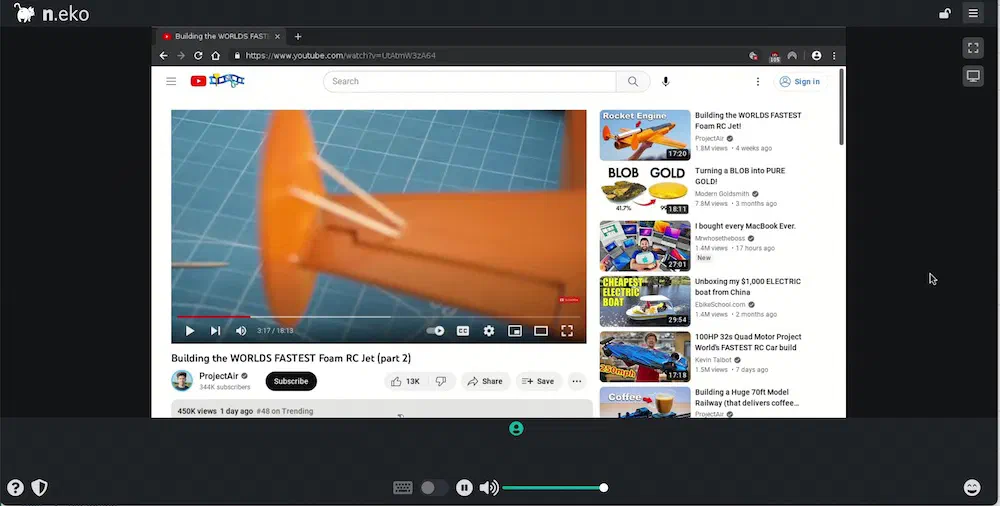
I ended up going an even more modern way by using the virtual browser N.eko. This way you get a full graphical browser running on a remote machine. Licenced under the Apache license, it’s a project of Miroslav Šedivý. I’m sure I’ve read in a forum somewhere that he built it to watch anime online with friends - and there’s some functionality (such as chats) that supports that.
Docker is the easy way to spin it up. It is a little bit resource hungry - 1GB is specified for the lowest resolution, but this guy shows adding a swap file to make the memory up to that. My VPS has 512KB, but NVMe storage, so I tried without the swap file and could not get it to start, and then with the swap file and it worked fine. Here’s my compose:
version: '3.5'

services:
  neko:
    image: m1k1o/neko:chromium
    restart: always

    cap_add:
      - SYS_ADMIN

    ports:
      - "8081:8080"
      - "59000-59100:59000-59100/udp"

    environment:
      DISPLAY: ":99.0"
      SCREEN_WIDTH: 1024
      SCREEN_HEIGHT: 576
      SCREEN_DEPTH: 16
      NEKO_PASSWORD: neko
      NEKO_ADMIN: admin
      NEKO_BIND: ":8080"
      NEKO_NAT1TO1: 100.138.120.102
The only thing in there that took a bit of sorting out was the last line - the NEKO_ATA1TO1 environment variable. I didn’t need that at all running on a remote VPS - it just all worked out of the box, but when I was trying on my development node at home (which is a close hardware/software mirror of the remote setup I need it for) I had less luck.
In that configuration, when I went to log in, it would take ages, then say peer disconnected. In the logs, there was an error WRN read message error error="websocket: close 1005 (no status)". Some googling took me to a GitHub issue about it. When n.eko starts, it autodetects the external IP and expects connections from there. This will also be an issue for my remote site, since it’s on a Tailnet that won’t match it’s external IP. The solution is to add the NEKO_NAT1TO1 environment variable in your docker-compose.yaml and set it to a single IP address with no quotes - being the IP address you’ll connect to it on.
Edits:
4/3/24 - changed the image name to m1k1o/neko:chromium from nurdism/neko:chromium which was an old old version.